
Guide
How to Translate a Scanned Bank Statement PDF and Keep the Layout for Visa Applications
Most guides to translating a bank statement just list steps: upload, translate, download. That's not the hard part. The hard part is knowing which kind of PDF you actually have, which parts of the statement carry real risk, and whether a machine translation is even good enough for what you're submitting it for. This guide covers the decisions, not just the steps — with real, unedited before/after examples so you can see exactly what happens instead of taking our word for it.
Native PDF vs. scanned PDF: which one actually keeps its layout?
Before you translate a bank statement to English, check which kind of PDF you have — it changes everything about how reliable the result will be.
How to tell: open the PDF and try to select a word of text with your cursor, or use Cmd/Ctrl+F to search for a word you can see on the page. If it highlights real text, you have a native (digital) PDF — it was generated directly by a bank system or exported from online banking, and it has a real text layer underneath the visible page. If nothing selects — the page behaves like a single flat picture — you have a scanned or photographed PDF: a printed statement that was scanned or photographed and then wrapped in a PDF container, with no text layer at all.
Text can be replaced in place — position, font size and color are read directly, so the table grid, numbers and stamps stay pixel-aligned. No reconstruction, so no risk of a row being duplicated, merged or dropped.
There's no text to edit in place — only pixels. Translating it means treating the page like an image: detect the text, translate it, and redraw it back into the picture. That reconstruction step is where layout and even numbers can drift, as the examples below show.
Practical tip:if your statement came from online banking, look for a "download statement (PDF)" option instead of printing and scanning a paper copy. That one click is the single biggest thing you can do to keep your translated bank statement reliable.
How to handle each part of a bank statement
A bank statement isn't one block of text — it's several different elements, and each one needs different handling when you translate it.
- The transaction table
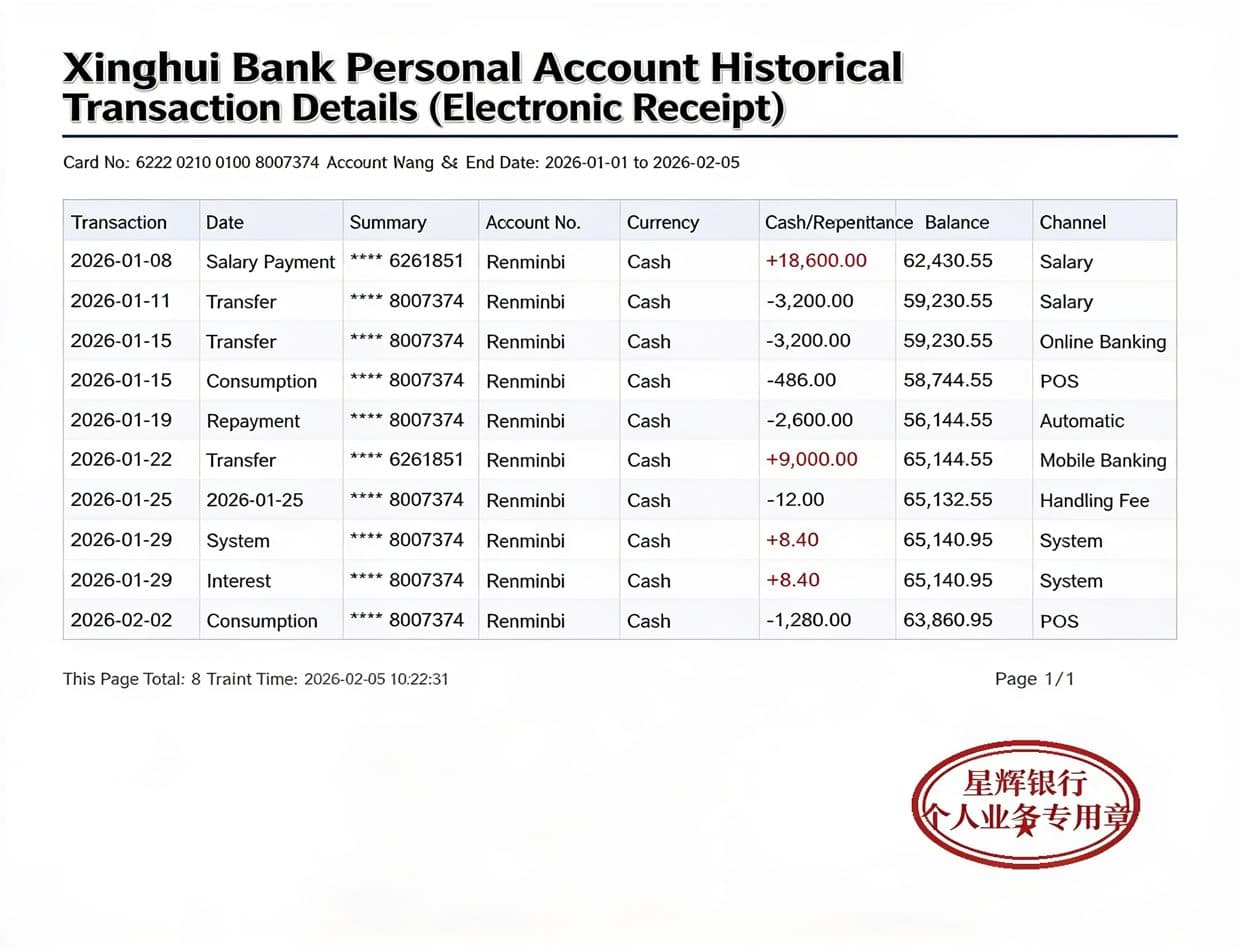
- This is the highest-stakes part of the document. Dates, account numbers and amounts should never be re-translated — they should be left exactly as printed, with only labels (like transaction descriptions) translated. Always check the amount column line-by-line against the original after translating; our dense-table test below shows this really can go wrong.
- Headers and footers
- Bank name, statement period, page numbers and any printed disclaimers usually repeat on every page and are easy to overlook. Confirm they're still present (not silently dropped) and that any QR code or barcode used for verification is untouched, not redrawn.
- Stamps and chops (印章)
- A bank seal or chop is often a visual authenticity check for the person reviewing your document, not just text — in most cases it should be preserved untouched rather than translated. It's also one of the most common failure points: a faint, light-colored stamp is easy for OCR to miss or misread, especially where it overlaps real text.
- Signatures
- Handwritten or scanned signatures should never be redrawn, translated, or reconstructed by any tool. If you ever see a translated document with an altered signature, treat that as a serious red flag about the tool you're using.
- Amount / balance columns
- Numbers should be copied through unchanged — never re-typeset or re-rendered as "translated" values. Even so, we'd recommend manually spot-checking a few rows of any translated statement against the source before you submit it anywhere official.
Why scans and photos fail translation more often
When a document has no text layer, a translation tool has to effectively do OCR (optical character recognition) as its first step, before it can translate anything. A handful of conditions make that step — and everything after it — meaningfully less reliable:
- Low resolution or clarity. Compressed images, small phone-camera file sizes, or heavily downsampled scans blur the edges of characters, which is exactly where OCR engines start guessing.
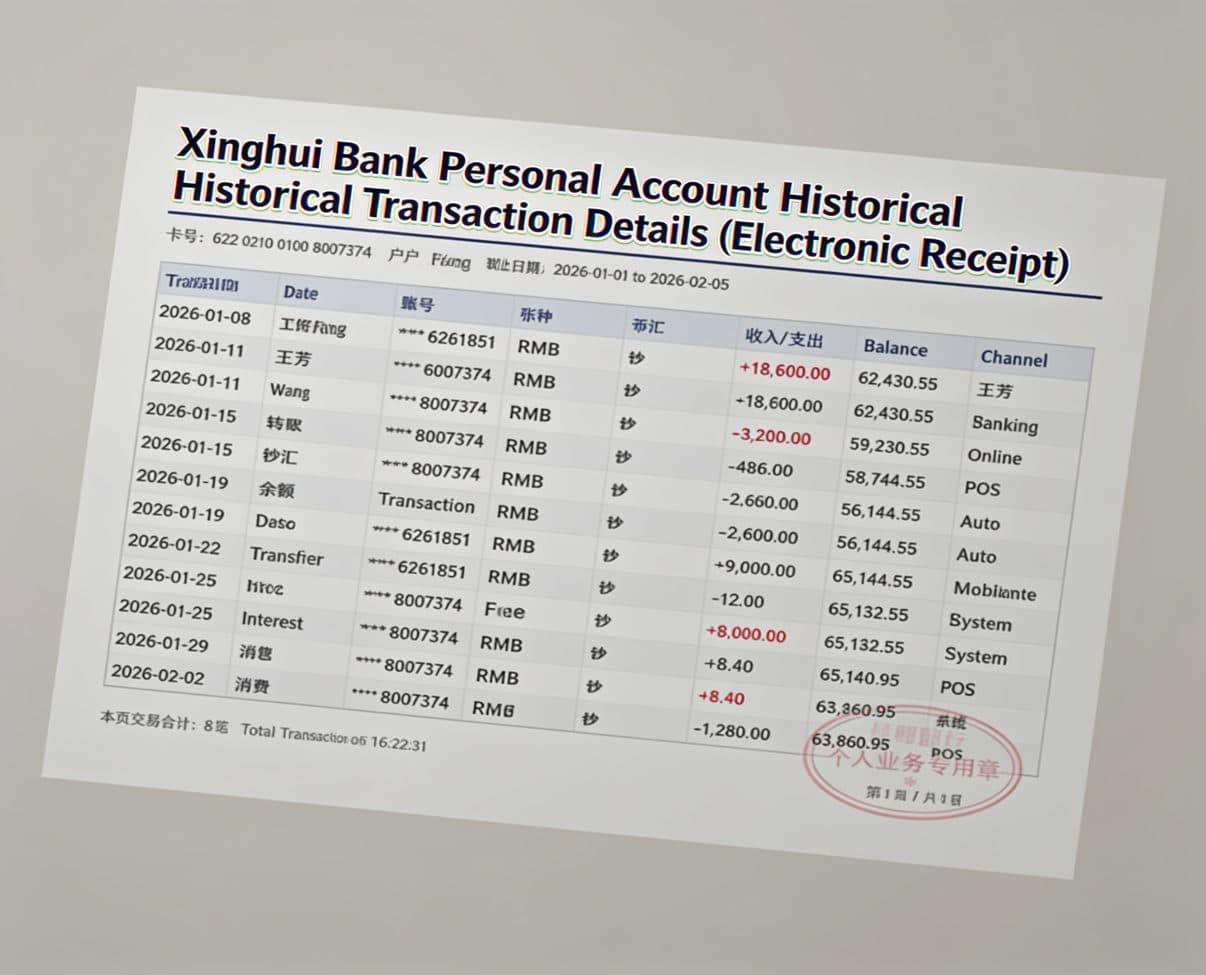
- Skew and rotation. A photo taken at even a slight angle bends every row of a table out of its straight horizontal line, which makes it harder to tell which cell a number belongs to — this is a major source of misaligned columns.
- Faint or light-colored stamps. A low-contrast chop overlapping a row of numbers can be picked up as noise, or can obscure the digits underneath it, depending on how it prints against the page.
- Dense, many-column tables. The more columns and rows packed onto a page, the smaller the text has to be and the easier it is for a reconstruction step to merge two rows, skip one, or shift a number into the wrong column.
None of these are unique to any one tool — they're inherent to translating an image instead of real text. The examples in the next section show exactly what that looks like in practice.
Machine translation vs. certified translation: which do you need?
This is the question that matters most, and it has nothing to do with translation quality — it's about what the receiving office requires.
- Understanding your own bank statement, or a family member's
- Preparing a draft to hand to a translator, agent, or lawyer
- Internal review by an employer, landlord, or school
- Any submission whose instructions don't use the words "certified", "sworn", or "notarized"
- Any visa or immigration office that explicitly requires certification
- Court, legal, or notarized submissions
- Anywhere a signed statement of translation accuracy is required
- When the instructions are ambiguous — always ask the office directly
If you're not sure which category you're in, search the official instructions for the word "certified" before you submit anything. When it's required, a fast, format-preserving tool like this one is genuinely useful — as the draft you hand to your certified translator, not as the final document.
3 real examples: what actually happens
These aren't mockups pulled from a design file — we generated a fictional bank statement ("Xinghui Bank", not a real institution) and ran the exact same content through our own production pipeline in three conditions, unedited. We're showing the failures along with the successes, because that's the only way this guide is actually useful.
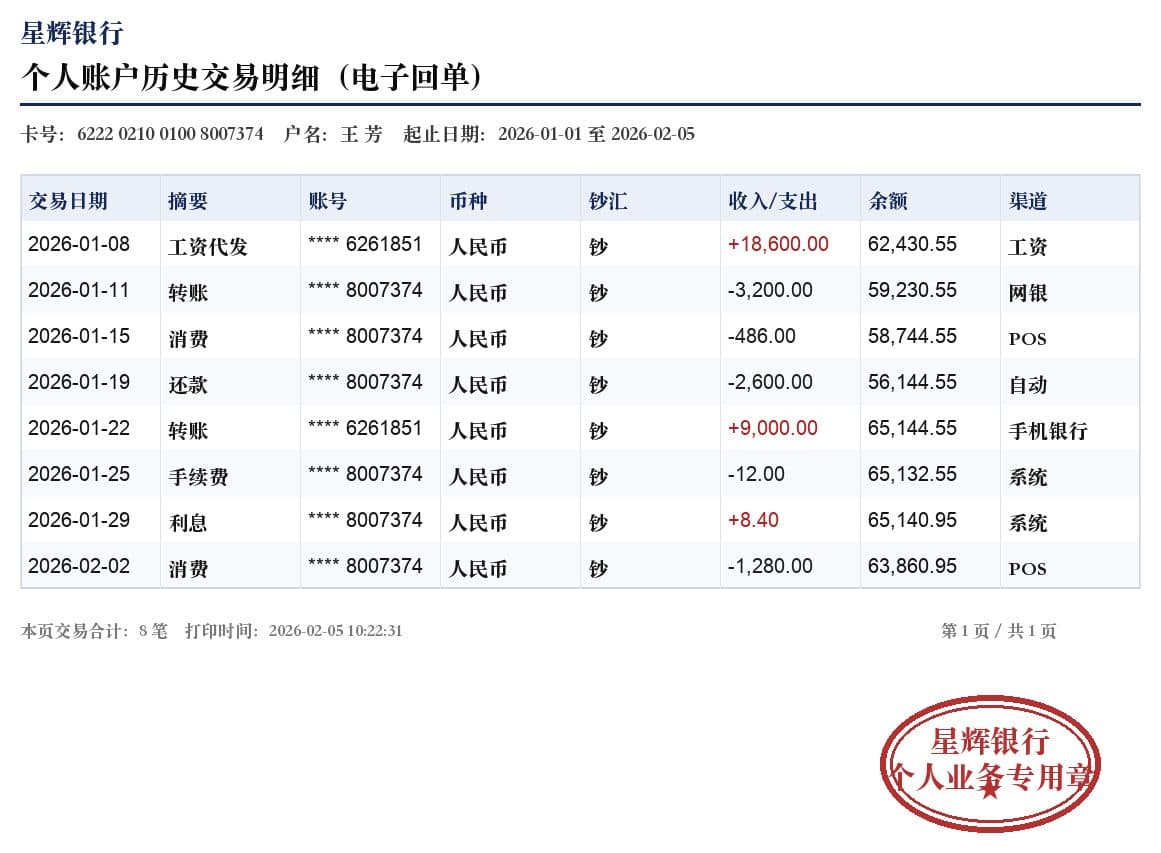
1. Clear scan — mostly good, with real issues
A clean, well-lit, straight scan — the best-case condition for a scanned document.
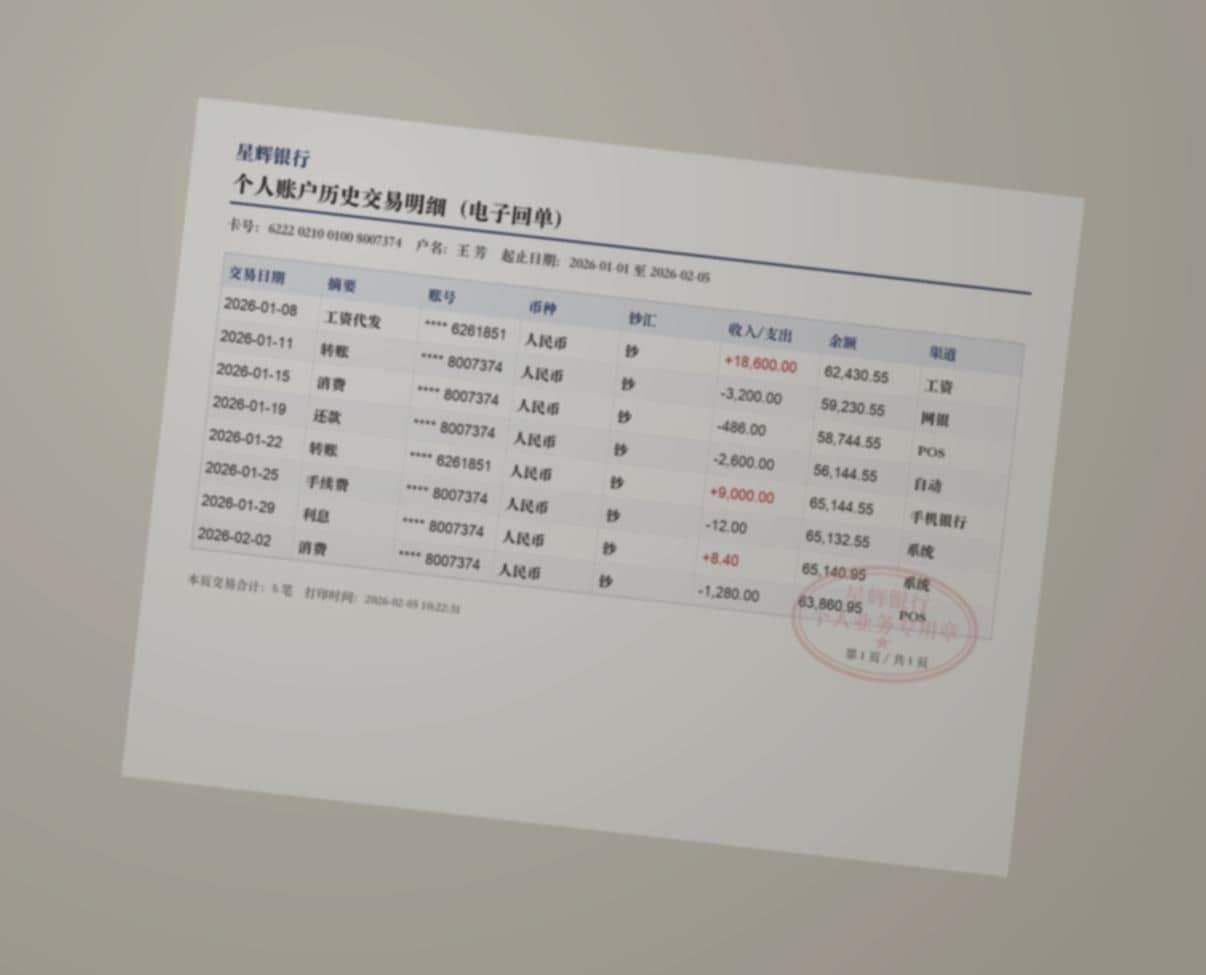
2. Phone photo — skewed, uneven light, faint stamp
A phone photo of the same statement on a desk: rotated, warm uneven lighting, slight blur, and a faint, light-colored stamp overlapping the last two rows.
3. Complex, dense table — 22 rows, 10 columns
Same clean scan quality as example 1, but with a much denser table — more columns and smaller text, closer to a real multi-week statement.
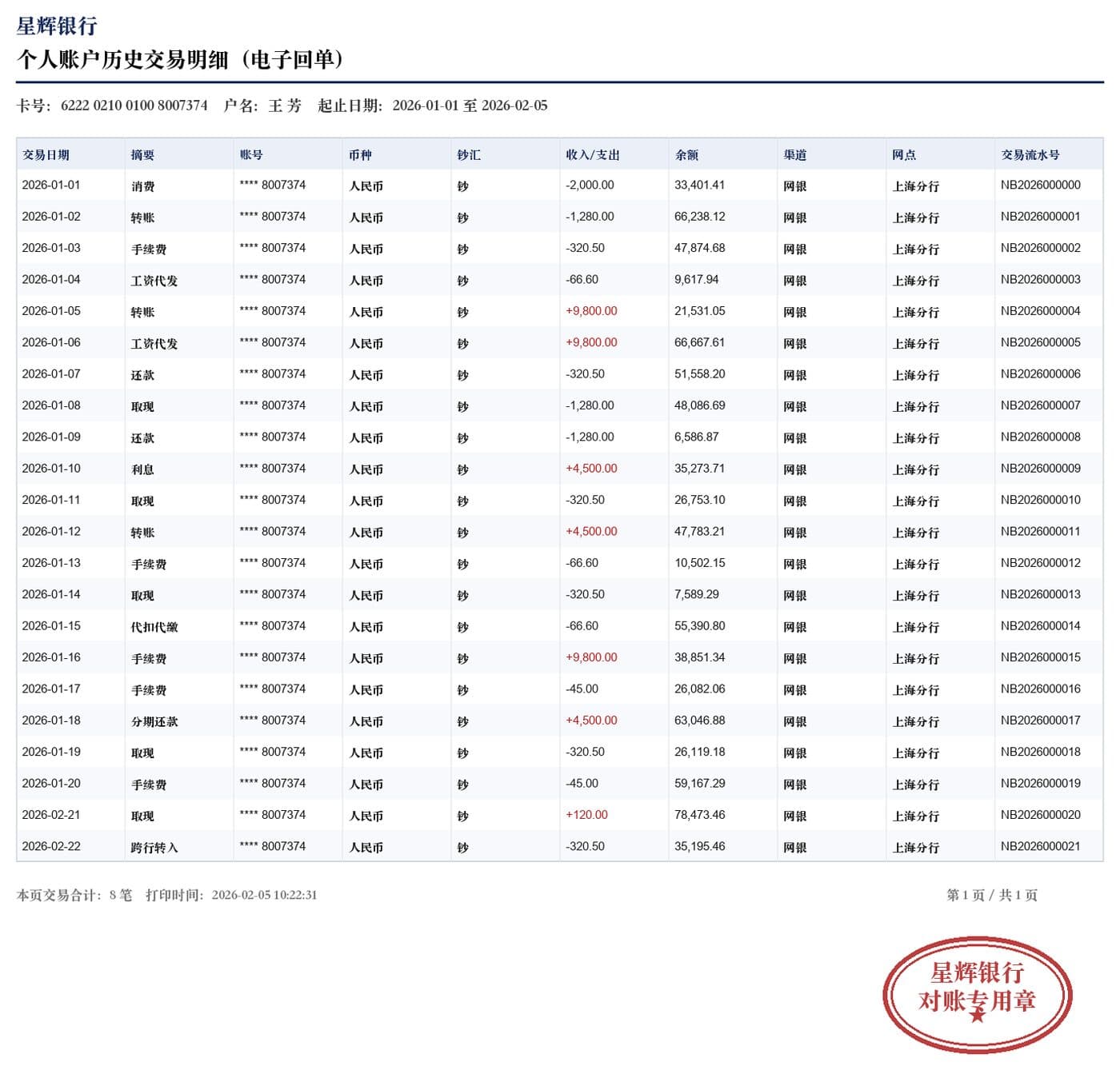
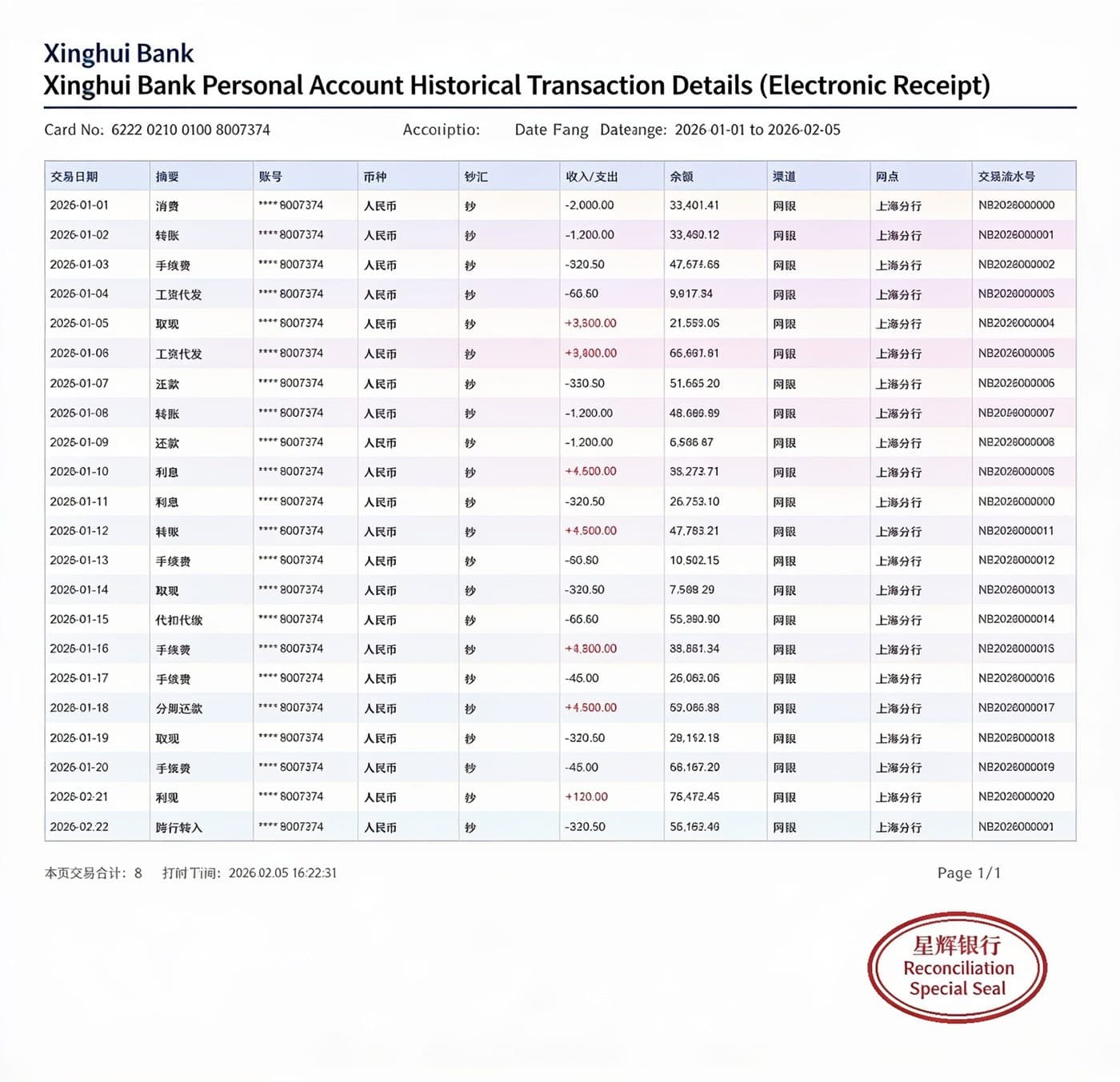
Bonus: the same dense table as a native PDF
Identical content to example 3, but as a native PDF with a real text layer, translated with our in-place PDF engine instead of the image pipeline.
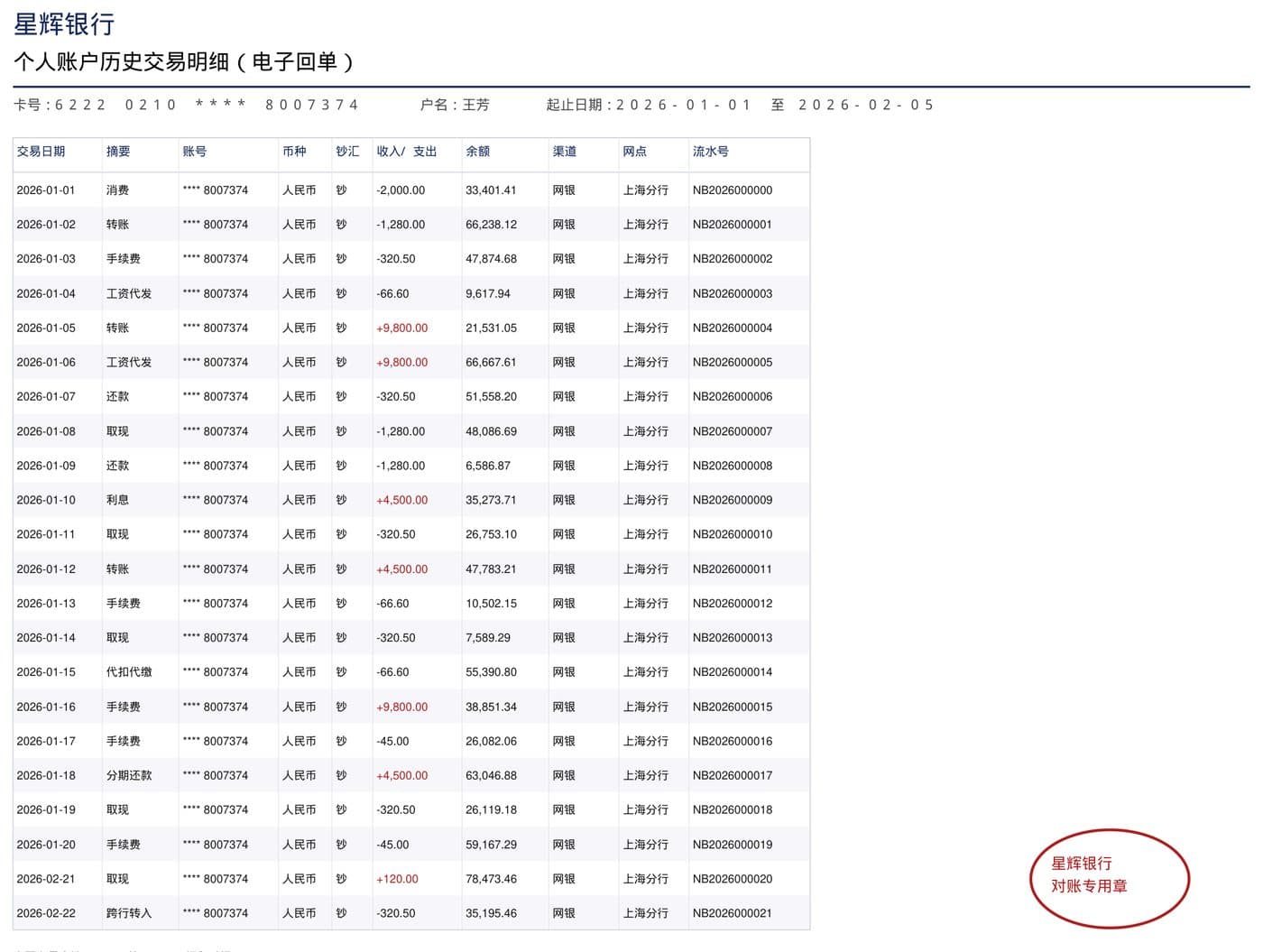
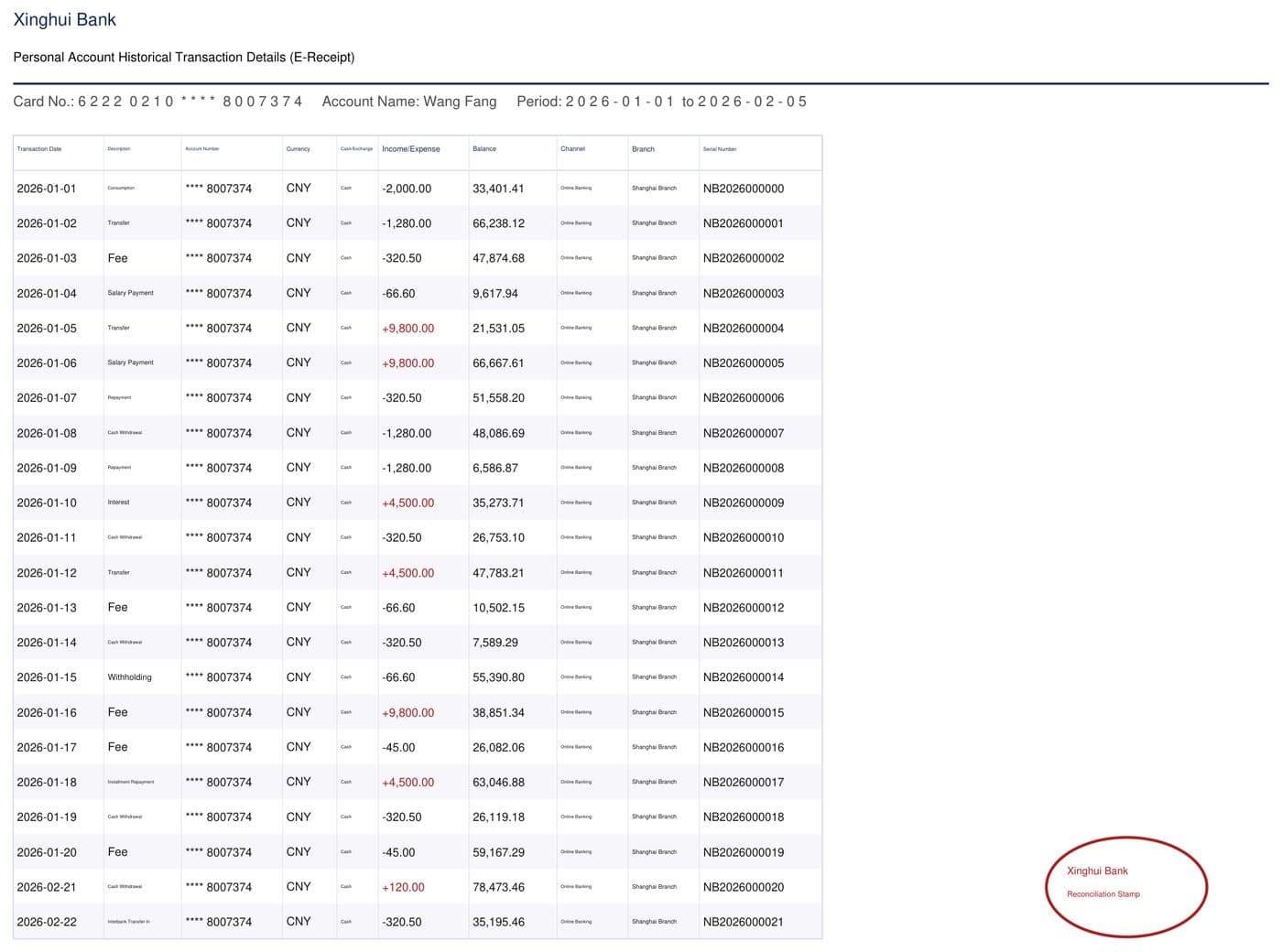
The KeepFormat difference
Most PDF translation tools are built to help you understanda document — they extract the text, translate it, and hand you a clean summary or a reflowed page. That's a different goal from ours. KeepFormat is built so the translated file still looks like the original— same table, same columns, same numbers in the same places — because that's what a visa officer, bank, or counterparty actually compares against the source document.
For a native PDF, that means editing the real text layer in place — no reflowing, no regenerated layout, nothing hallucinated. For a scan or photo, we're honest that it's a harder problem with real limits, which is exactly why this guide exists: so you can choose the right source document and know what to double-check, instead of finding out the hard way after submitting it.
"Preserves formatting" means different things to different tools — see our 7-point test for what "keep formatting" actually means to check any PDF translator, including this one.
Frequently asked questions
Can I translate a scanned PDF and keep the exact same layout?
Partly. A scanned PDF has no text layer, so any translation tool has to reconstruct the page from an image — it can preserve the visual style closely, but our own tests show it can also duplicate rows, merge cells, or leave dense tables partly untranslated. A native (digital) PDF with a real text layer preserves layout and numbers exactly, because the tool edits the existing text in place instead of regenerating the page.
Is machine translation accepted for visa or immigration applications?
It depends entirely on the requirements of the specific visa office, embassy, or agency you're submitting to. Many explicitly require a "certified" or "sworn" translation with a signed accuracy statement from a professional translator — machine translation does not satisfy that requirement on its own. If the instructions don't mention certification, a clear machine translation is often acceptable for a bank statement. When in doubt, check the official instructions or ask the receiving office directly.
Why does my translated bank statement look different from the original?
This usually happens when the source is a scan or photo rather than a native PDF. Tools that translate scanned documents have to regenerate the page image, which can shift spacing, drop faint elements like a light stamp, or occasionally alter a row. Translating a native PDF with a text layer avoids this because the original layout, fonts and numbers are never regenerated — only the text is replaced in place.
Should the bank's stamp or seal be translated?
Generally no — a stamp or chop is often checked visually by the reviewing officer as a sign of authenticity, so it's usually best left untouched rather than translated or redrawn. Faint, light-colored stamps are also one of the more common causes of OCR misreads on scanned documents, which is worth knowing if your statement has one.